Set Up the Deck
1. Install Anki
Anki is the free flashcard program that powers the deck. Download it for your computer from apps.ankiweb.net and install it.
You can also review on your phone with AnkiMobile (iOS) or AnkiDroid (Android) — but you still need the computer version to set up and sync the deck.
2. Create an AnkiHub account
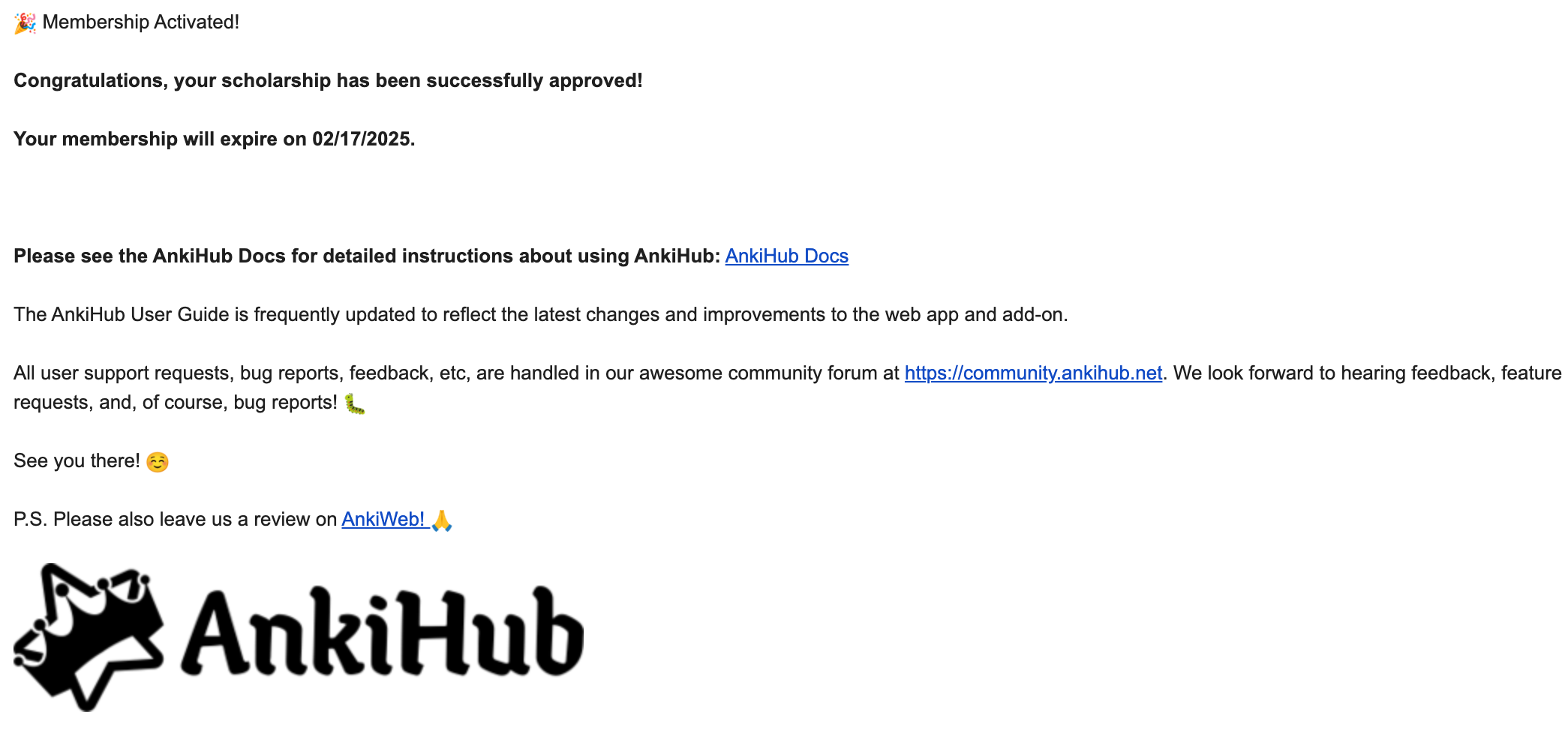
The deck is delivered and kept up to date through AnkiHub. AnkiHub is free for everyone through its scholarship program — the free and paid plans are identical.
- Free: apply for a scholarship. You'll usually receive an email within a few days. Nothing after 2 weeks? Contact AnkiHub (forum / email).
- Paid ($6 USD/month): sign up here if you'd rather start right away.
3. Install the AnkiHub add-on
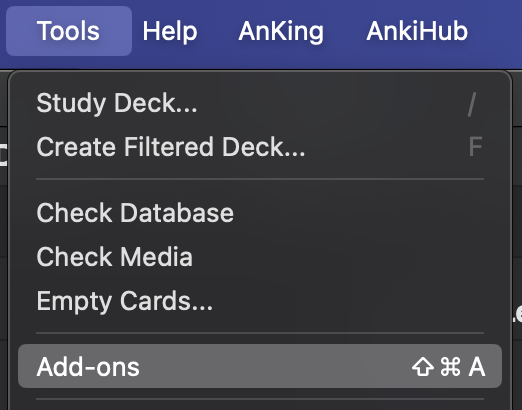
- In Anki, click Tools → Add-ons → Get Add-ons…
- Paste the code 1322529746 and click OK
- Restart Anki
- Click AnkiHub → Sign into AnkiHub and log in
4. Subscribe to the Malleus deck
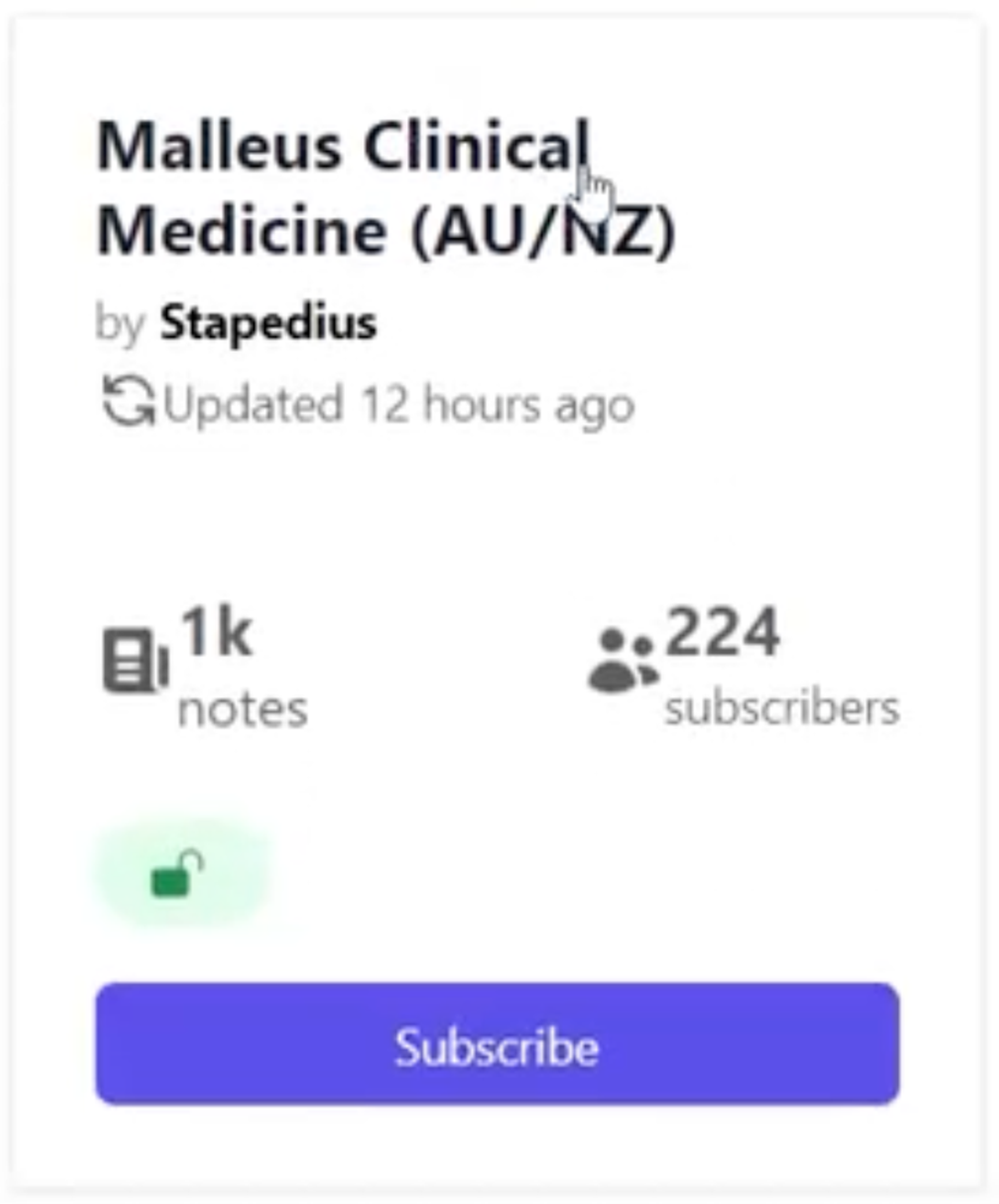
Open the Malleus Clinical Medicine page on AnkiHub and click Subscribe.
By subscribing to and using the deck, you agree to our Terms of Use.
5. Protect your personal notes
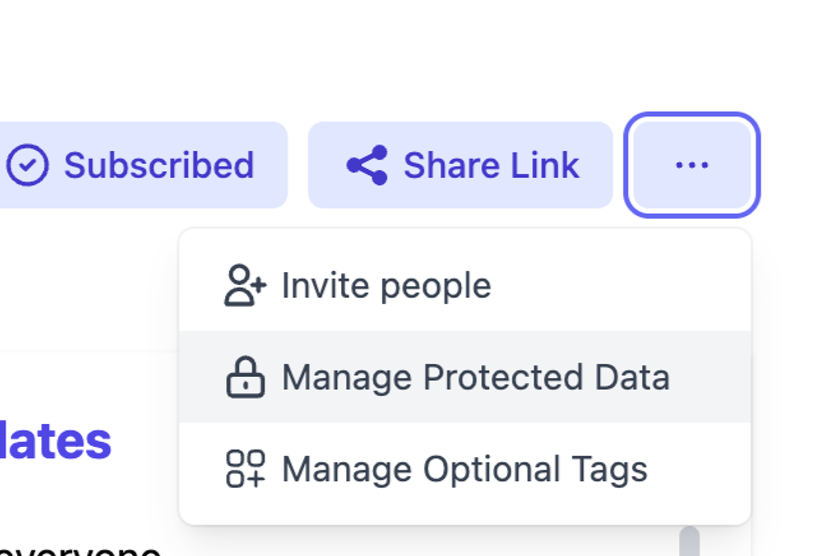
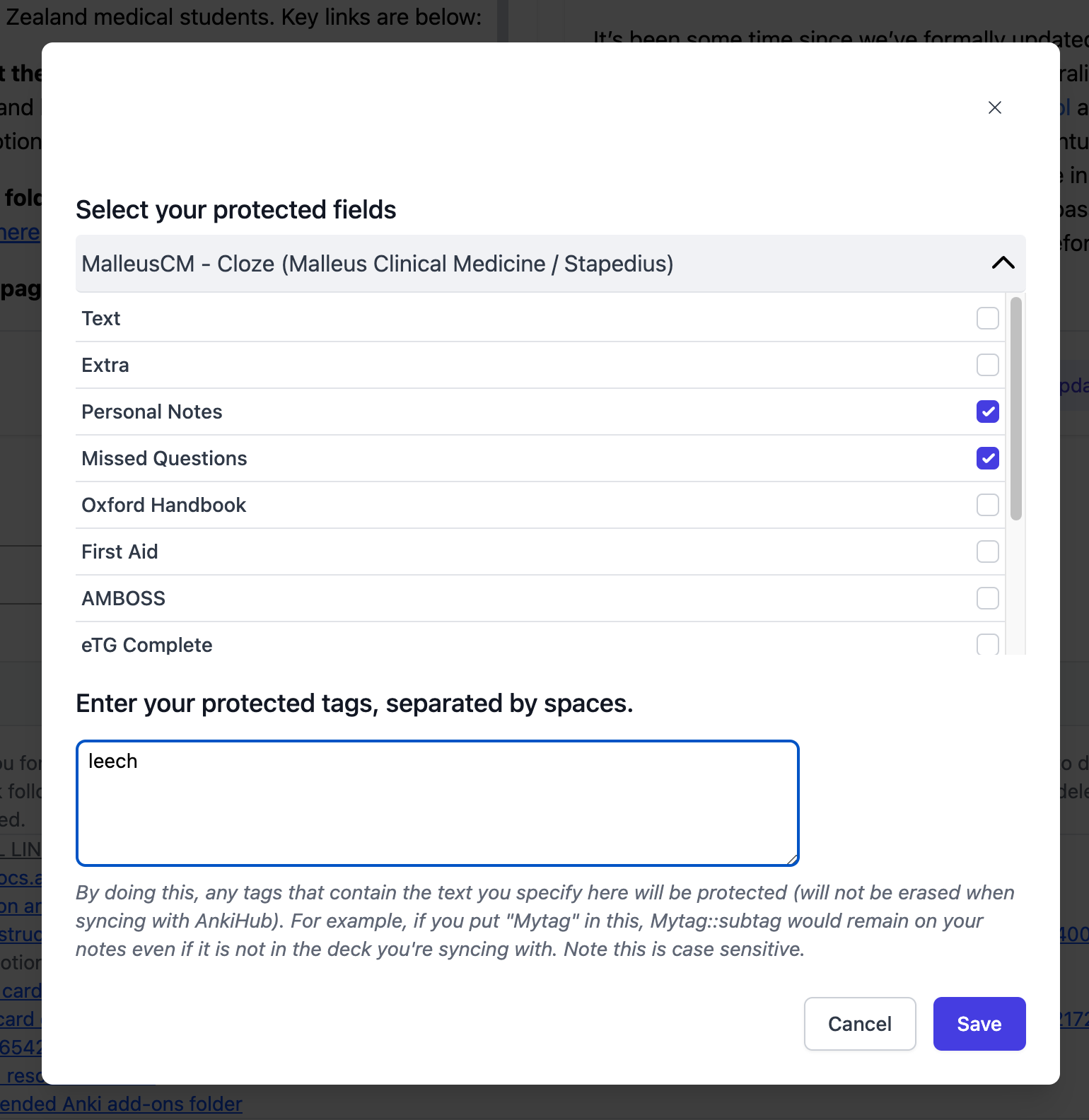
On the same AnkiHub deck page, click … → Manage Protected Data, then:
- tick Personal Notes and Missed Questions
- type leech (without quotes) into the protected tags field
This stops deck updates from overwriting things that are yours:
- Personal Notes — your own notes, links to uni lectures, local guidelines
- Missed Questions — screenshots of practice questions you got wrong (e.g. from eMedici or AMBOSS)
- leech tag — Anki automatically tags cards you keep getting wrong so you can review them separately
6. Open Anki and install
Restart or sync Anki. When you see "You have new AnkiHub decks to install", keep the recommended settings and click Install.
Recommended extra add-ons (optional)
- Malleus Anki Helper — code 620451841. Find cards by topic and create correctly tagged cards from inside Anki. Strongly recommended; it's used throughout this guide.
- Mini Format Pack — code 295889520. Extended text editor; needed for some formatting in the Submission Guidelines.
- Wrapper meta-addon — code 396502676. Makes citing images easy (see Submission Guidelines → Images).
- Spellchecker — code 143753963. Australian medical spellcheck; setup instructions in the Submission Guidelines.
Restart Anki after installing add-ons.
Studying with the Deck
The deck is organised by tags, not sub-decks. Every card is tagged by subject, rotation, yield, and more — so you choose exactly what to study by suspending and unsuspending cards.
Step 1 — Suspend everything (once)
When you first install, every card is active. Start by suspending them all, then bring back only what you're studying:
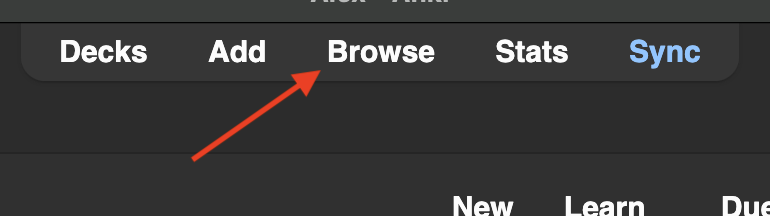
- Click Browse (shortcut: B)
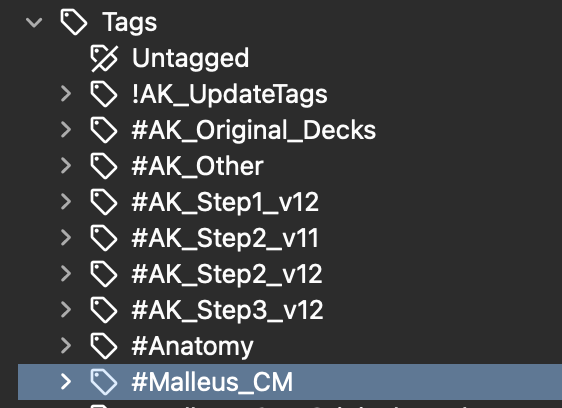
- In the sidebar, find Tags → #Malleus_CM
- Click any card in the main window, then select all (Ctrl+A / ⌘+A)
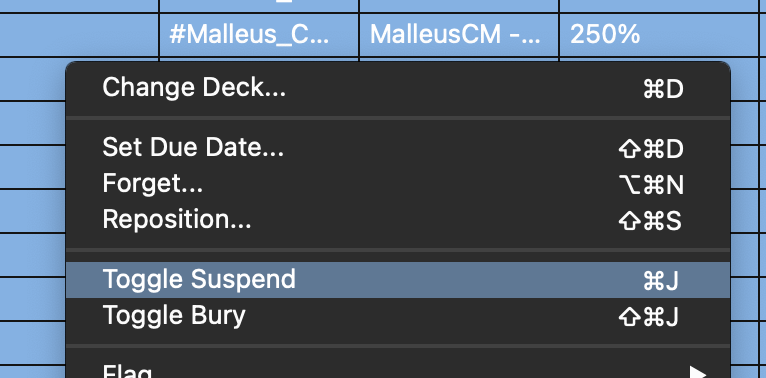
- Right-click → Toggle Suspend (Ctrl+J / ⌘+J)
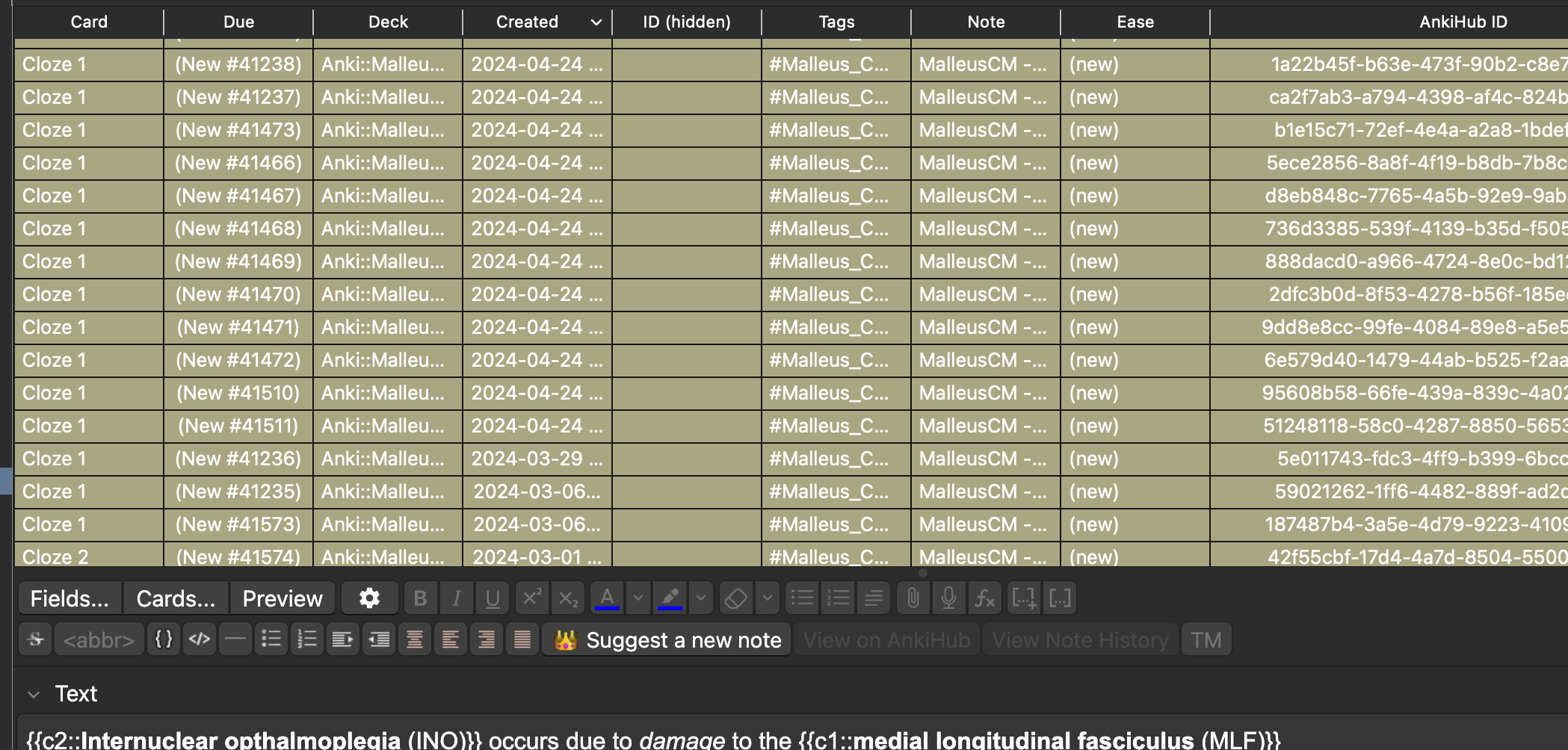
All cards should now be yellow (suspended). You only ever do this once.
Step 2 — Unsuspend what you're studying
Find the cards for your current topic and unsuspend them the same way (select → Ctrl+J / ⌘+J). Three ways to find them:
Easiest — the Malleus Helper add-on
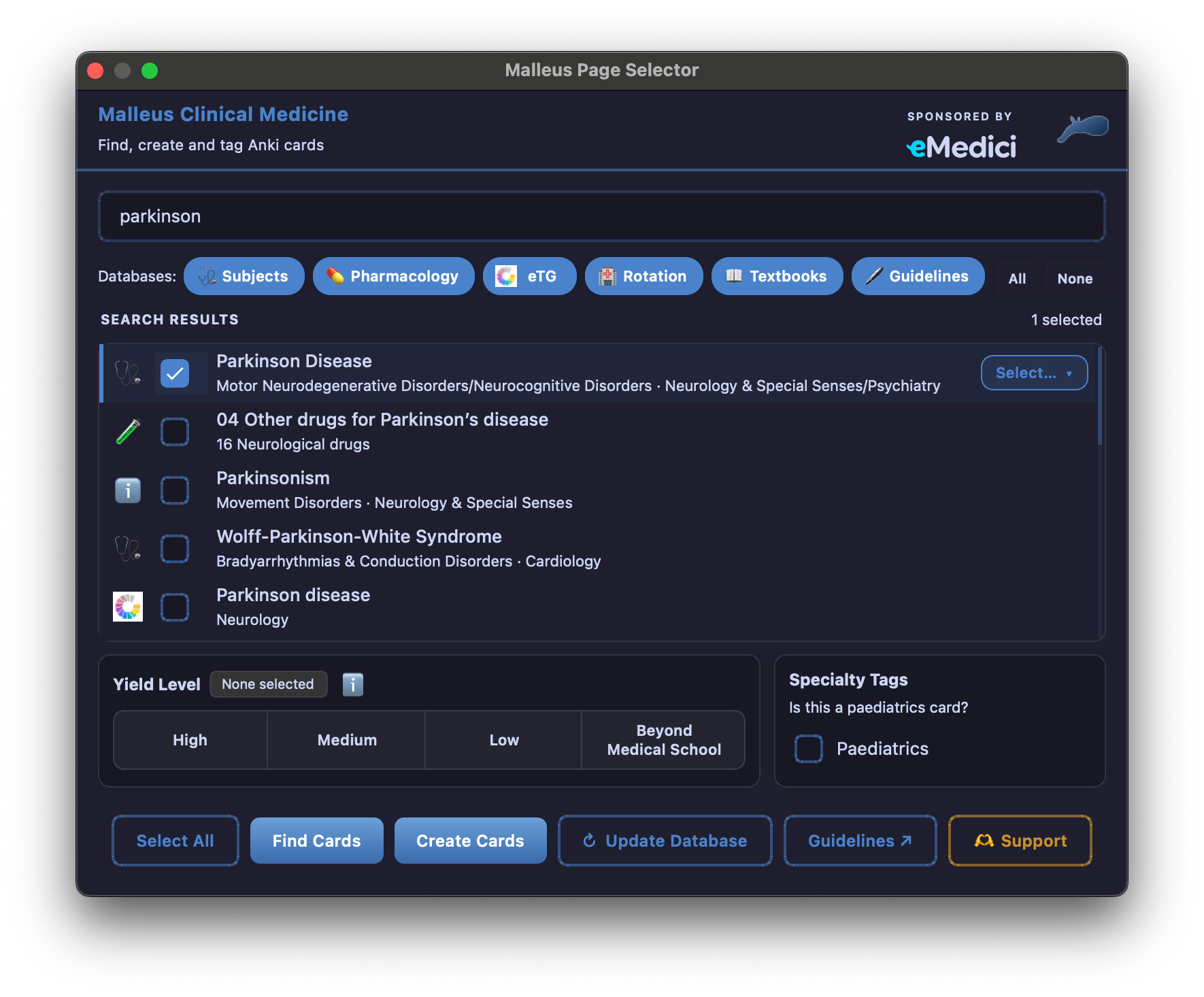
- Click Tools → Malleus Find/Add Cards (or the Malleus button in the Browser)
- Pick a database (Subjects, Rotations, Pharmacology, eTG…)
- Type a topic (e.g. "parkinson"), select the pages, and click Find cards. You can optionally narrow your search to just the management cards for example by using the subtag selector to the right and the yield using the yield selector below
The tag tree — in the Browser sidebar, drill down e.g. #Malleus_CM → #Subjects → Neurology_&_Ophthalmology → 11_Degenerative_Disorders → Parkinson_Disease, or #Malleus_CM → #Resources_by_Rotation → Obstetrics_&_Gynaecology at the start of a rotation.
Doing eMedici questions? Find matching cards in one click
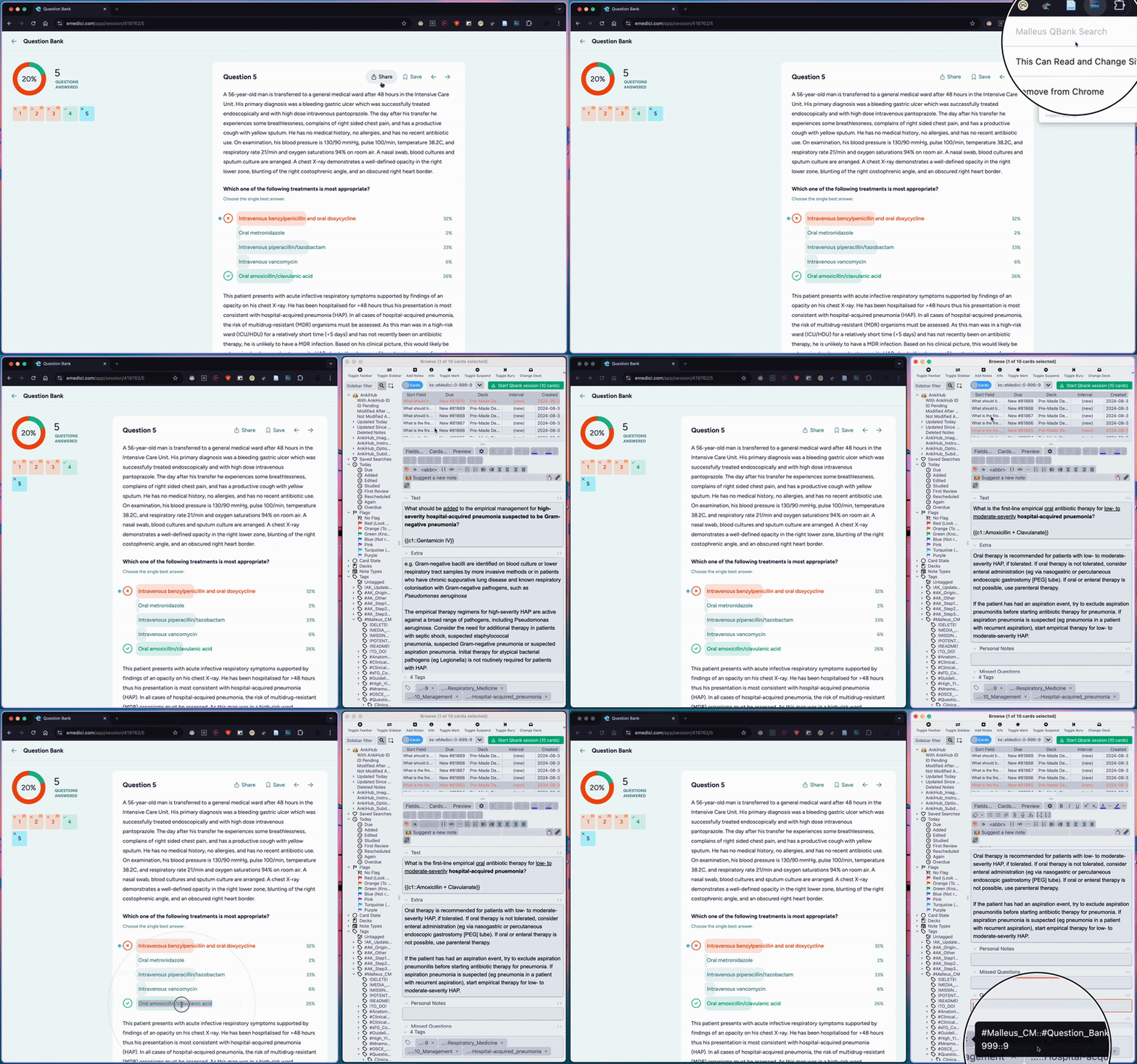
Our Chrome extension finds the Malleus cards for whatever eMedici question you're on:
- Install the Malleus QBank Search Chrome extension
- Install the AnkiConnect add-on (code 2055492159)
- With Anki running, click the extension in your toolbar — an Anki Browser window opens with all the relevant cards, ready to unsuspend or move to a filtered deck
Step 3 — Review
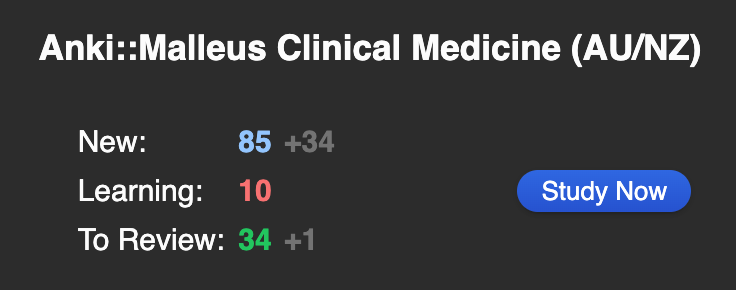
Back on the Anki main screen, click Malleus Clinical Medicine (AU/NZ) → Study Now. That's it — do your reviews daily and let spaced repetition do the rest.

Contributing to the Deck
Anyone can suggest new cards or improvements to existing ones — that's what keeps the deck alive. Before submitting, read the Submission Guidelines once, then use the Card Submission Checklist each time you submit.
Suggesting a new card
- Write it — click Add (shortcut: A) and set the note type to MalleusCM - Cloze. Other note types can't be submitted. Add cloze deletions with Ctrl+Shift+C / ⌘+Shift+C.
- Reference it — fill the Source field with an accepted source, URL, and access date (see Submission Guidelines → Referencing).
- Tag it — at minimum one Subject tag, one Rotation tag, and a Yield tag. The Malleus Helper add-on does this for you (see Submission Guidelines → Tagging). Untagged cards are usually rejected.
- Submit it — click 👑 Suggest a new note, or select several cards in the Browser, right-click → AnkiHub: Bulk suggest notes.
- Add a rationale — one or two sentences on why the card should be accepted.
The maintainer team will review your submission and email you the outcome. Minor change requests appear as comments on AnkiHub Community (no email, so check back).
Suggesting an edit
Spotted an error or a card that could be better? Press E during a review (or edit in the Browser), make your change, then click 👑 Suggest a change and add a brief rationale. The same review process applies.
Becoming a maintainer
Most maintainers joined after consistently commenting, voting, and suggesting. Interested? Message us on Discord or email president@malleus.org.au.
Fixing Sync Issues
Occasionally AnkiHub syncing glitches — duplicate cards, missing or out-of-order tags. Work through these in order; they fix the vast majority of problems:
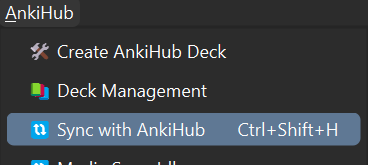
- Sync with AnkiHub — AnkiHub → Sync with AnkiHub from the main screen
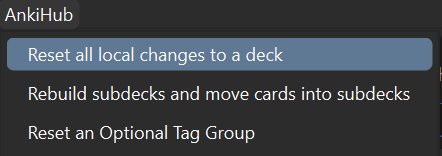
- Reset local changes — in the Browser, AnkiHub menu → Reset all local changes to a deck
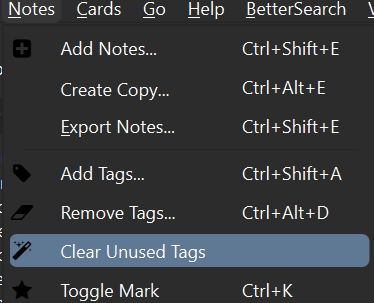
- Clear unused tags — in the Browser, Notes → Clear Unused Tags
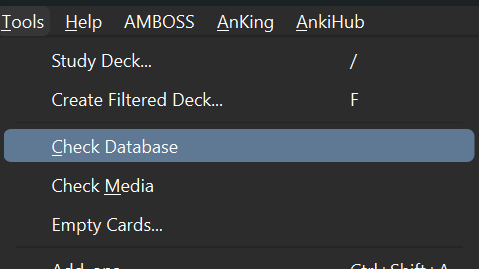
- Check the database — Tools → Check Database, then Check Media, then Empty Cards
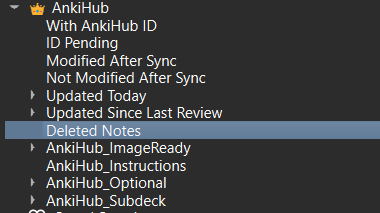
- Remove deleted notes — in the Browser, click the AnkiHub Deleted Notes tag, select all (Ctrl+A), right-click → Notes → Delete note, then sync again
Still stuck? Ask in Discord or the AnkiHub forum.